Greetings, reader!
I will be updating my YouTube Channel more frequently than this blog so subscribe to my channel to get updates on new games and confirmations do they run or not.
Sad News
I have some sad news to report.
Installing Windows 7 screwed up my XP installation.
The boot file of XP is gone and restoring it does not help. Probably MBR is broke.
So yeah only solution is reinstall but XP doesn't really going along with Windows 7.
It causes Windows 7 get confused and I had it installed in disk E after XP changed the boot file it became disk F, which is a DVD-RAM!
So only XP or Windows 7.
I choose Windows 7. Because inevitably everyone will have to change to it.
Unless the newly presented Windows 8 coming in 2010 Fall is going to be better.
Installing Windows 7 screwed up my XP installation.
The boot file of XP is gone and restoring it does not help. Probably MBR is broke.
So yeah only solution is reinstall but XP doesn't really going along with Windows 7.
It causes Windows 7 get confused and I had it installed in disk E after XP changed the boot file it became disk F, which is a DVD-RAM!
So only XP or Windows 7.
I choose Windows 7. Because inevitably everyone will have to change to it.
Unless the newly presented Windows 8 coming in 2010 Fall is going to be better.
Upgrade
I Upgraded to Dual-Boot
Windows XP SP3 and Windows 7.
So my YouTube account will be filled with mixed videos of both systems.
http://www.youtube.com/user/AequusMihi
Windows XP SP3 and Windows 7.
So my YouTube account will be filled with mixed videos of both systems.
http://www.youtube.com/user/AequusMihi
Windows 7 - Light of Salvation?
Windows 7 - Light of Salvation?
Is it? At the start of the beta Intel X3100 Users have reported that FPS is really getting better when using this version of Windows. Because of the updated WDDM 1.1 drivers it is more superior to its predecessors.
Most people say that Windows 7 is just a codename for Windows Vista SP2. This maybe is true.
But I would recommend upgrading to Windows 7 until the RC or Final release comes out.
Because betas are known for serious stability, compatibility bugs.
And besides the drivers ( Official Drivers ) haven't been released. But mostly Vista drivers except for Realtek Sound Card which needs XP drivers work.
So upgrading to Windows 7 at its final release is the best bet for us Intel X3100 users.
YouTube
Hi, everyone!
I started to post Youtube videos of gameplay more often.
So if you wanna check them out >>>> http://www.youtube.com/user/AequusMihi
Also right now uploading a special video of BattleField Heroes gameplay.
I got the beta key so downloaded it and recorded some of the gameplay.
I started to post Youtube videos of gameplay more often.
So if you wanna check them out >>>> http://www.youtube.com/user/AequusMihi
Also right now uploading a special video of BattleField Heroes gameplay.
I got the beta key so downloaded it and recorded some of the gameplay.
PCSX2
I DIDN'T MAKE THIS. ALL CREDIT GOES TO ElbErtZai
PCSX2 Playground
THE WAIT IS OVER!
Firstly, sorry for the delay cause i was still testing the emulator configuration for better result.
With the release of PCSX2 Playground, Light has shined away all those nightmarish FPS we're getting over the past version of PCSX2 and it show a big performance improvement! Yes! We Intel 945GM user finally get our chances to play PS2 games! ( This is also apply to 965GM user as it was tested there too)
Although it is not stable yet(heck, this is the best damn thing already that exist!), I was able to play Final Fantasy X!
The normal FPS (Frame Per Second) is 60.00. Most of the time, the game would normally run below normal game speed. Sometime even worst (70% above FPS drop due to graphic effects)
Here are some screenshot with FPS monitoring:
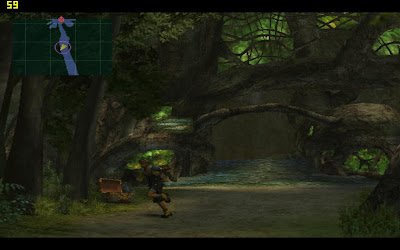 During In game
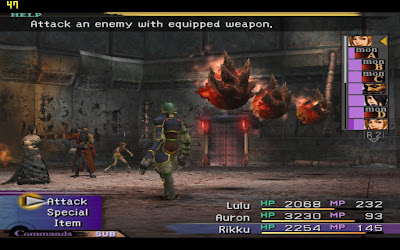 During Battlemode
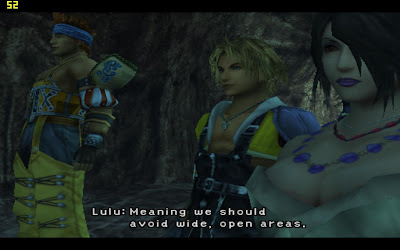 During Cutscene
After days of configuration for best result, I will post a guide here on how to configure for best result that i found:
Warning! Any harms done to your computer are strictly you're own responsibilities! Do not blame or acuse me or anyone if you are following this guide! You have been WARNED!
Requirement:
You'll will need at least Core 2 Duo Processor as it depends on it
First thing first,
1) Download the emulator from the official website, click here
The current version of PCSX2 Playground I'm using is 1.0.0395 (Credit goes to all the PCSX2 and PCSX2 Playground Developer Team)
2) Read the official guide for the knowledge you need to know before you follow my configuration guide. click here
3) Alright, now download the graphic plugin call "GSDX", the latest version for now is 0.1.14, then extract to the plugin folder found in the PCSX2 folder. (make sure u have the latest Direct X installed) (Credit goes to "Gabest". click here)
4) Now let's start configuring: (I'll be guiding on how to configure step by step)
a) Graphics:
- Choose "GSdx 890 (MSVC 15.00, SSSE3) 0.1.14" for Core 2 Duo user only, SSE2 for Single Core and Duo Core user, SSE4 for Quad Core user
- In the Graphics Configure Option, check the "Native" box
b) Sound:
- Choose "PE.Op.S. SPU2 1.9.0"
c) First/Second Controller:
- "Lilypad" is good for keyboard while "SSSPSX PAD" is good for joypad/controller
d) Cdvdrom
- "Gigaherz's CDVD Plugin 0.7.0"
- In the Cdvdrom configure option, choose your source drive of where your game is located.
e) Dev9, Usb, Firewire
- Leave it to default
f) BIOS
- Allocate your BIOS from your BIOS folder in the PCSX2 folder
- DO NOT ASK where to get these files!
The configuration is completely setup, now for the extra setting to boost performance!
5) In the COnfig tab, u will see other options like CPU, Gamefixes, Speedhacks and Advanced. I'll go through it one by one.
a) CPU
- check the "Multi threaded GS mode (MTGS)" box (only for Core 2 Duo and Quad Core user)
- check the "Limit" box on the right in the Frame Limiting Section (This is due to the Speedhack function, it accelerates the normal game to 2x/3x more frames, therefore limit speed option is a must to control the game speed if it accelerates too fast)
b) GameFixes
- only use this if you're playing the games that are listed in there
c) Speed Hacks
- Check the option that are listed:
- Disable VU Overflow
- Disable Underflow
- Disable Extra VU Flags
- Disable Extra FPU Flags
- EE Sync Hack
- IOP Sync Hack
- EE/IOP Sync Hack
- Escape Hack
d) Advanced
- In EE Recs Option, Roundmode choose "Chop/Zero" option
- In VU Recs Option, check both "Flush to Zero" and "Denormals are Zero" option
Hint: This configuration is based on Final Fantasy X (Use "pcsx2_Pg_VM" executable file for better performance)
If you configure it properly then Congratz and Enjoy!
Good news people!
The new game Tom Clancy's H.A.W.X. runs at 30 FPS!
Here's the proof.
So all air combat fans using Intel's X3100 won't be disappointed this year!
Grab this game from any site because it's only demo!
And get gaming!
ALSO posting a few YouTube channels were you can find videos showing gameplay with the X3100 on various games. Pretty useful if you ask me.
PQuarme Channel
IntelGamersGuide Channel
DuxXaz Channel
CREDIT GOES TO THE CREATORS OF THE VIDEOS!
I DIDN'T HELP IN THE CREATION OF THOSE VIDEOS!
Here's the proof.
So all air combat fans using Intel's X3100 won't be disappointed this year!
Grab this game from any site because it's only demo!
And get gaming!
ALSO posting a few YouTube channels were you can find videos showing gameplay with the X3100 on various games. Pretty useful if you ask me.
PQuarme Channel
IntelGamersGuide Channel
DuxXaz Channel
CREDIT GOES TO THE CREATORS OF THE VIDEOS!
I DIDN'T HELP IN THE CREATION OF THOSE VIDEOS!
HOW TO RUN DEADSPACE ON INTEL X3100
HOW TO RUN DEADSPACE ON INTEL X3100


Get the game of course, update your drivers.
The game can be gotten from warez, torrents, gamestores.
To update your Intel X3100 drivers go here : PRESS
And how to mod and config :
Turn on the game.
Go to Options > Visuals.
Resolution 1024x768 or LOWER.
Turn Vsync off. Then go to Advanced Render Settings.
Bloom, Glow, Depth Of Field, AA, Blur, Post Processing, Flares, Motion Blur, Decals
Set it individually. I set everything ON and it works normally.
Shader Quality LOW. Shadow Quality OFF.
Press Accept.
Play The Game!
In the movies and the start of the game it will lag.
Just wait for the action to start.
The game can be gotten from warez, torrents, gamestores.
To update your Intel X3100 drivers go here : PRESS
And how to mod and config :
Turn on the game.
Go to Options > Visuals.
Resolution 1024x768 or LOWER.
Turn Vsync off. Then go to Advanced Render Settings.
Bloom, Glow, Depth Of Field, AA, Blur, Post Processing, Flares, Motion Blur, Decals
Set it individually. I set everything ON and it works normally.
Shader Quality LOW. Shadow Quality OFF.
Press Accept.
Play The Game!
In the movies and the start of the game it will lag.
Just wait for the action to start.
HOW TO RUN BATTLEFIELD 2 ON INTEL X3100
HOW TO RUN BATTLEFIELD 2 ON INTEL X3100

Get the game of course, update your drivers.
The game can be gotten from warez, torrents, gamestores.
To update your Intel X3100 drivers go here : PRESS
And now how to config for XP SP3 :
I set everything on Medium and I can run it.
If it doesn't work just set Texture Filtering lower.
Update of course to 1.41 version.
Sometimes I host a server but sorry only for my friends. ( No one else, password protected )
And for Vista SP1 :
!!!DON'T EVEN TRY BATTLEFIELD 2 IS NOT COMPATIBLE,
FULLY UNPLAYABLE!!!
I know it's disappointing.. Such a good game.. And Vista not compatible. Sorry.
The only way is to do what I did. Dual-Boot the both OS. Vista and XP.
HOW TO RUN MOUNT & BLADE ON INTEL X3100
HOW TO RUN MOUNT & BLADE ON INTEL X3100


Get the game of course, update your drivers.
The game can be gotten from warez, torrents, gamestores.
To update your Intel X3100 drivers go here : PRESS
And now how to config :
Double-click the launcher and press Configure
Set Render Method To DirectX 7
Use Pixel Shaders ON
Texture Quality 100%
Frame Rate 100
Resolution 1024x768 32bit ( Actually you can choose any resolution you like )
Anti-Aliasing OFF
Shadows High
Then in game go to options > Video Options.
Grass Density 0%
Dynamic Lighthing OFF
Character, Environment and Real-Time Plant Shadows OFF
Anisotropic Filtering OFF
Everything else ON and to the max!
ENJOY THE GAME!
**HINT** ""Sniff"" Do you smell it? The smell of Liberty City... **HINT**
ATTENTION!!!
Soon I will post videos of gameplay to prove they are playable and fully enjoyable.
Counter-Strike : Source
The Elder Scrolls IV Oblivion
And new Intel drivers have been created. I strongly advice to upgrade as soon as possible.
Link for the drivers : PRESS
Counter-Strike : Source
The Elder Scrolls IV Oblivion
And new Intel drivers have been created. I strongly advice to upgrade as soon as possible.
Link for the drivers : PRESS
HOW TO RUN THE ELDER SCROLLS IV OBLIVION ON INTEL X3100
HOW TO RUN THE ELDER SCROLLS IV OBLIVION ON INTEL X3100

Get the game of course, update your drivers.
The game can be gotten from warez, torrents, gamestores.
To update your Intel X3100 drivers go here : PRESS
And now how to mod!
These mods will increase FPS and make your game more enjoyable
PIXELATE <-- IT WON'T MAKE PIXELS BUT WILL SMOOTH TEXTURES AND REMOVE UNNEEDED POLYGONS AND ADD A LOT FPS! STREAMLINE <-- REQUIRES OBSE ( Oblivion Script Extender )
OPERATION OPTIMIZATION <-- LIKE PIXELATE BUT DOESN'T TO ANYTHING TEXTURES JUST OPTIMIZES THEM TO LOAD FASTER AND GIVE MORE FPS!
LOW-POLY GRASS <-- MAKES GRASS LOOK THE SAME BUT INCREASES FPS! DOWLOAD THE LOW POLY GRASS FILE NOT THE ONE FOR SHIVERING ISLES!
OBLIVION POLYGONE OVERHAUL <-- SHORTENS LOAD TIMES, BETTER FRAMERATES, LESS HDD TRASHIN!
THIS TUTORIAL HAS BEEN MADE FOR OBLIVION
NOT FOR SHIVERING ISLES
I RECOMMEND USING OBMM! TO INSTALL IT, JUST EXTRACT TO OBLIVION FOLDER!
I RECOMMEND USING OBMM! TO INSTALL IT, JUST EXTRACT TO OBLIVION FOLDER!
HOW TO RUN HALF-LIFE 2 ON INTEL X3100
SAME AS COUNTER-STRIKE:SOURCE

Go here and follow the instructions : PRESS
THE DIRECTORY WILL BE hl2\cfg
NOT css\cfg
HOW TO RUN COUNTER-STRIKE:SOURCE ON INTEL X3100
HOW TO RUN COUNTER-STRIKE:SOURCE ON INTEL X3100

Get the game of course, update your drivers and use a fps config.
The game can be gotten from warez, torrents, Steam, gamestores.
To update your Intel X3100 drivers go here : PRESS
And for the fps config
//_Set Netcode vars_
cl_cmdrate "101"
cl_interp "0.01"
cl_interpolate "1"
cl_lagcomp_errorcheck "0"        // Disables lagcompensation error checking, only needed if you're having any registration/loss/choke problems.
cl_lagcompensation "1"
cl_smooth "1"
cl_updaterate "101"
rate "25000"

//_Set MP vars_
mp_decals "0"            // How many player sprays will be shown.

//_Set Client vars_
cl_drawmonitors "0"        // Disables the rendering of ingame "monitors" which contain 3d rendered images.
cl_ejectbrass "0"            // Disables brass ejection
cl_forcepreload "1"            // Forces the game to load all texture and model information into memory on map load.
cl_phys_props_enable "1"        // Enables phsyics props.
cl_phys_props_max "50"        // Maximum amount of physics props allowed.
cl_ragdoll_physics_enable "0"    // Disables ragdoll.
cl_restrict_server_commands "0"    // Compatible/needed with serverplugins
cl_show_splashes "0"        // Disables water splashes.

//_Set Render vars_
r_3dsky "0"            // Disables the rendering of 3d sky boxes.
r_decal_cullsize "9999"        // Any decals under this size are not rendered.
r_decals "0"            // Disables decals.
r_drawbatchdecals "1"        // Enables the rendering of decals in batch.
r_drawdetailprops "1"        // Enables the rendering of detail props.
r_drawflecks "0"            // Disables the sparks and dirt from bullet impacts.
r_drawmodeldecals "0"        // Models decals (i.e. blood).
r_eyes "0"            // Disables eyes in models.
r_lod "-1"                // Different level of details on models. -1 = Variable at distance. 0 = None. 1 = Minor. 2 = Less minor.
r_modellodscale "1.0"        // The transitioning power of LOD.
r_occlusion "0"            // Enables the Model Occlusion system.
r_propsmaxdist "100"        // Max distance at which props are rendered.
r_renderoverlayfragment "0"
r_rootlod "2"            // Base lod of the model in the memory.
r_shadowmaxrendered "32"        // Max shadows the game will render.
r_shadowrendertotexture "1"        // Rendered the shadow texture causing it to match the player model.
r_shadows "1"            // Enables shadows (Change be disabled for additional performance.)
r_teeth "0"            // Disables teeth in models.
r_waterdrawreflection "0"        // Disables the rendering of water reflections.
r_waterforceexpensive "0"        // Forces cheap water.
gl_clear "0"            // Disables the gl_clear convariable.
props_break_max_pieces "0"    // Disables prop fragmenting

//_Set Materials vars_
mat_antialias "0"            // Disables the use of multisampling to smooth out edges.
mat_bumpmap "0"            // Disables bump mapping.
mat_clipz "0"            // Disables optimized Z-Buffer rendering.
mat_compressedtextures "1"    // Disables texture compression. Users with low amounts of system memory should turn this on.
mat_disable_bloom "1"        // Disables bloom effects.
mat_hdr_enabled "0"        // Disables HDR.
mat_hdr_level "0"            // Double Disables HDR.
mat_mipmaptextures "1"        // Enables the use of mipmapping to make textures look smooth.
mat_monitorgamma "1.6"        // Lower the number the brighter the screen. Only works in fullscreen.
mat_picmip "2"            // Changes the resolutions of textures when they're loaded into memory. May improve FPS on graphics cards with low memory sizes.
mat_reducefillrate "1"        // Reduces the fillrate when the game is run in DXLevel 8.
mat_specular "0"            // Disables Specularity on objects.
mat_trilinear "0"            // Disables the use of Trilinear mipmapping.
mat_wateroverlaysize "8"        // Sets the resolution of water distortion. Must be multiple of 8.

//_Set Violence vars_
violence_ablood "1"
violence_agibs "1"
violence_hblood "1"
violence_hgibs "1"

//_Set HUD vars_
hud_centerid "1"            // Centers player IDs
net_graph "3"            // Enables net_graph (Required in SS round)
net_graphpos "2"            // Adjusts netgraph position-set between 1 and 3.

//_Set Misc settings_
cl_downloadfilter "nosounds"        // Disables annoying pub sound downloads
fps_max "101"             // Caps framerate. Set to max monitor refresh rate + 1.
jpeg_quality "100"            // High quality screenshots

clear
echo FPS Config Loaded!
And if you want add mat_dxlevel x ( Change the x with 70, 80, 81, 90 )
IF YOU HAVE INTEL CORE2DUO CHANGE mat_queue_mode to mat_queue_mode 2
Put this in css\cfg\autoexec.cfg or create your another cfg
To create a cfg :
1. Go to Control Panel > Folder Options > View > Hide extensions for known file types ( Uncheck it )
2. Go to css\cfg
3. Create a new notepad file
4. Rename it to fpsconfig BE SURE TO DELETE .txt AND WRITE .cfg AT THE END!!!
HOW TO RUN TEAM FORTRESS 2 ON INTEL X3100
HOW TO RUN TEAM FORTRESS 2 ON INTEL X3100

Get the game of course, update your drivers and use a fps config.
The game can be gotten from warez, torrents, Steam, gamestores.
To update your Intel X3100 drivers go here : PRESS
And for the fps config
//Netcode Settings
rate 25000
cl_cmdrate 101
cl_interp_ratio 1
cl_updaterate 101
cl_interpolate 1

//Actual Video Settings
mat_antialias 0
mat_forceaniso 0
mat_hdr_enabled 0
mat_hdr_level 0
mat_picmip 2
mat_trilinear 0
mat_vsync 0
r_rootlod 2
mat_dxlevel 81
mat_monitorgamma "1.6"

//FPS Settings
fps_max 0  //Setting to 0 sets no max limit
cl_detaildist "0"
cl_detailfade "0"
cl_drawmonitors "0"
cl_ejectbrass "0"
cl_forcepreload "1"
cl_lagcomp_errorcheck "1"
cl_lagcompensation "1"
cl_downloadfilter "nosounds"
cl_ejectbrass "0"
cl_forcepreload 1
cl_phys_props_enable "0"
cl_phys_props_max "0"
cl_show_splashes "0"
cl_smoothtime "0.01"
cl_smooth 1
commentary 0
mat_aaquality "0"
mat_autoexposure_max "0"
mat_autoexposure_min "0"
mat_bloomscale "0"
mat_bufferprimitives "0"
mat_bumpmap "0"
mat_clipz "1"
mat_compressedtextures "1"
mat_diffuse "1"
mat_disable_bloom "1"
mat_disable_fancy_blending "1"
mat_disable_lightwarp "1"
mat_disable_ps_patch "1"
mat_envmapsize "0"
mat_excludetextures "1"
mat_envmaptgasize "0"
mat_fastspecular "1"
mat_filterlightmaps "1"
mat_filtertextures "1"
mat_forceaniso "0"
mat_forcehardwaresync "0"
mat_forcemanagedtextureintohardware "0"
mat_framebuffercopyoverlaysize "0"
mat_hdr_enabled "0"
mat_hdr_level "0"
mat_hdr_manual_tonemap_rate "0"
mat_mipmaptextures "0"
mat_lightmap_pfms "0"
mat_maxframelatency "0"
mat_max_worldmesh_vertices "0"
mat_parallaxmap "0"
mat_picmip "2"
mat_queue_mode "-1"
mat_reducefillrate "1"
mat_shadowstate "0"
mat_show_ab_hdr "0"
mat_showlightmappage "-1"
mat_specular "0"
mat_texture_limit "-1"
mat_trilinear "0"
mat_use_compressed_hdr_textures "1"
mat_showenvmapmask "0"
mat_showlowresimage "0"
mat_showmaterials "0"
mat_showmaterialsverbose "0"
mat_supportflashlight "0"
mat_wateroverlaysize "0"
mat_motion_blur_enabled "0"
mat_motion_blur_percent_of_screen_max "0"
mat_softwarelighting "0"
mp_decals "0"
muzzleflash_light "0"
net_maxfragments "1280"
net_maxfragments "1280"
net_showevents "0"
npc_height_adjust "1"
props_break_max_pieces "0"
props_break_max_pieces_perframe "0"
r_3dnow "1"
r_3dsky "0"
r_PhysPropStaticLighting "0"
r_WaterDrawReflection "0"
r_WaterDrawRefraction "0"
r_ambientboost "0"
r_cheapwaterend "1"
r_cheapwaterstart "1"
r_decal_cullsize "0"
r_decals "0"
r_dopixelvisibility "0"
r_drawbatchdecals "0"
r_drawflecks "0"
r_drawmodeldecals "0"
r_drawmodelstatsoverlaymax "1.5"
r_drawmodelstatsoverlaymin "0.01"
r_drawspecificstaticprop "0"
r_dynamic "0"
r_eyeglintlodpixels "0"
r_eyemove "0"
r_eyes "0"
r_eyeshift_x "0"
r_eyeshift_y "0"
r_eyeshift_z "0"
r_eyesize "0"
r_fastzreject "0"
r_flashlightrendermodels "0"
r_unloadlightmaps "1"
r_flashlightrenderworld "0"
r_flex "0"
r_forcewaterleaf "0"
r_lightaverage "0"
r_lod "2"
r_staticprop_lod "4"
r_maxdlights "0"
r_maxmodeldecal "0"
r_maxnewsamples "0"
r_maxsampledist "0"
r_minnewsamples "0"
r_mmx "1"
r_norefresh "0"
r_occlusion "0"
r_renderoverlayfragment "0"
r_queued_decals "1"
r_rootlod "2"
r_ropetranslucent "0"
r_shadowmaxrendered "32"
r_shadowrendertotexture "1"
r_shadows "0"
r_spray_lifetime "0.1"
r_sse "1"
r_sse2 "1"
r_teeth "0"
r_staticpropinfo "0"
r_updaterefracttexture "0"
r_updaterefracttexture "0"
r_visualizeproplightcaching "1"
r_waterdrawreflection "0"
r_waterforceexpensive "0"
r_waterforcereflectentities"0"
rope_averagelight "0"
rope_collide "0"
rope_shake "0"
rope_smooth "0"
rope_smooth_enlarge "0"
rope_smooth_maxalpha "0"
rope_smooth_maxalphawidth "0"
rope_smooth_minalpha "0"
rope_smooth_minwidth "0"
rope_subdiv "0"
rope_wind_dist "0"

//Blood settings
violence_ablood 1
violence_agibs 1
violence_hblood 1
violence_hgibs 1

echo FPS Config Loaded!
And if you want add mat_dxlevel x ( Change the x with 70, 80, 81, 90 )
IF YOU HAVE INTEL CORE2DUO CHANGE mat_queue_mode to mat_queue_mode 2
Put this in tf2\cfg\autoexec.cfg or create your another cfg
To create a cfg :
1. Go to Control Panel > Folder Options > View > Hide extensions for known file types ( Uncheck it )
2. Go to tf2\cfg
3. Create a new notepad file
4. Rename it to fpsconfig BE SURE TO DELETE .txt AND WRITE .cfg AT THE END!!!
Intel X3100
Hello Everyone!
In this blog you will see that the Intel X3100 Graphics Accelerator isn't that bad.
It can actually run a high number of games with a few modifications or without them.
You just have to have up-to-date drivers
and some configs for games if needed.
Like Counter-Strike:Source, Half-Life 2, Team Fortress 2.
In this blog you will see that the Intel X3100 Graphics Accelerator isn't that bad.
It can actually run a high number of games with a few modifications or without them.
You just have to have up-to-date drivers
and some configs for games if needed.
Like Counter-Strike:Source, Half-Life 2, Team Fortress 2.
Subscribe to:
Posts (Atom)

